
How to Add Aqara to Apple HomeKit (Hub, Matter and Bridge Methods)
Aqara offers a wide range of smart home devices that can work with Apple Home. But connecting them is not always obvious. Some need a hub, some work natively, and some need a bridge. This guide covers all three methods, plus a full breakdown of Aqara switches and hub compatibility, so you can find what works for your setup and get started quickly.
How Do You Add Aqara to Apple HomeKit Step by Step?
There are three ways to add Aqara to Apple HomeKit. Which one you use depends on how your device connects: through an Aqara Zigbee hub, through Matter, or through a Homebridge bridge like ATH Bridge. Most people with an Aqara hub should start with Method 1 or Method 2.
What Do You Need Before You Start?
- An iPhone or iPad on the latest iOS. On iOS 18 or later you can add and control Matter accessories without a home hub, but Apple still recommends one.
- An Apple home hub (HomePod mini, HomePod 2nd generation, or Apple TV 4K). You need one for remote control, automations, Apple Home Key on Aqara locks, HomeKit Secure Video, and the Thermostat Hub W200.
- A Thread border router for Matter-over-Thread devices such as the Door and Window Sensor P2, Presence Sensor FP300, and Smart Lock U200 or U400. HomePod mini, HomePod (2nd gen), and Apple TV 4K (Wi-Fi + Ethernet) all work.
- The Aqara Home app with your hub and devices already added and updated to the latest firmware.
- The right network. The Hub M2 uses 2.4 GHz Wi-Fi or an Ethernet cable. The Hub M200 supports both 2.4 GHz and 5 GHz.
Method 1: How Do You Add an Aqara Hub to Apple HomeKit With Its HomeKit Code?
This is the classic route for Aqara Zigbee sensors, switches, and plugs. You add the hub once, and every device paired to it shows up in Apple HomeKit.
- Set up the hub in the Aqara Home app and install any firmware update.
- Pair your Aqara Zigbee devices to the hub inside the Aqara Home app.
- Open the Apple Home app, tap +, then tap Add Accessory.
- Scan the hub's HomeKit setup code.
- If asked to add the accessory to your network, tap Allow. Pick a room, name the hub, then tap Continue and Done.
- Your Aqara devices now appear under the hub. Give each one a room. Devices you pair to the hub later appear in Apple HomeKit on their own.
Tip: If you added the hub in Apple HomeKit first, link it back in the Aqara Home app under Me > HomeKit Info > HomeKit Binding. That lets you keep updating firmware and adding devices from the Aqara app.
Method 2: How Do You Add Aqara to Apple HomeKit Using Matter?
Matter works two ways with Aqara. Your hub can act as a Matter bridge for its Zigbee devices, or a Matter-native Aqara device can pair with Apple HomeKit on its own.
Option A: Use your Aqara hub as a Matter bridge (Hub M3, M200, M100, M2 with Matter firmware, and camera hubs like the G350 and G410)
- Update the hub firmware in the Aqara Home app.
- Open the hub's Matter settings in the Aqara Home app and show its Matter pairing code.
- In the Apple Home app, tap + then Add Accessory, and scan the code. If the hub is already paired with another Matter app, tap More options and select it.
- Apple HomeKit adds the hub as a bridge. Choose which Aqara devices to share in the Aqara Home app, then assign rooms in the Apple Home app.
Option B: Pair a Matter-native Aqara device directly (Touchscreen Switch S100, Door and Window Sensor P2, Presence Sensor FP300, Smart Lock U200 and U400, Thermostat Hub W200)
- Set the device up in the Aqara Home app first and update its firmware. This step is optional but avoids pairing errors.
- In the Apple Home app, tap + then Add Accessory, and scan the Matter code on the device or its packaging.
- For Thread devices, make sure a Thread border router is online. Without one, the device will not respond.
Should You Add an Aqara Hub Using HomeKit or Matter?
Some hubs, like the Hub M3, can join Apple HomeKit either way Pick one. Adding the same hub through both HomeKit and Matter creates duplicate accessories in Apple HomeKit
| Feature (Hub M3) | Native HomeKit | Matter |
|---|---|---|
| Aqara security system in Apple HomeKit | Yes | No |
| Adaptive Lighting on Aqara lights | Yes | No |
| Air conditioner control (IR) | No | Yes, basic modes and temperature |
| Aqara scenes shared as virtual devices | No | Yes, with Advanced Matter Bridging |
As a simple rule: choose HomeKit if you use Aqara lighting or the Aqara alarm. Choose Matter if you want AC control or plan to share devices with other platforms too. The Hub M200 offers AC control only through Matter.
Method 3: How Do You Add Aqara to Apple HomeKit With ATH Bridge?
ATH Bridge is a pre-installed Homebridge server. It is most useful when your Aqara devices share the home with brands that have no Apple HomeKit support, so you can manage everything in one place. The full ATH Bridge steps are in the ATH Bridge setup section below.
Which Aqara Hub or Bridge Is Best for Apple HomeKit?
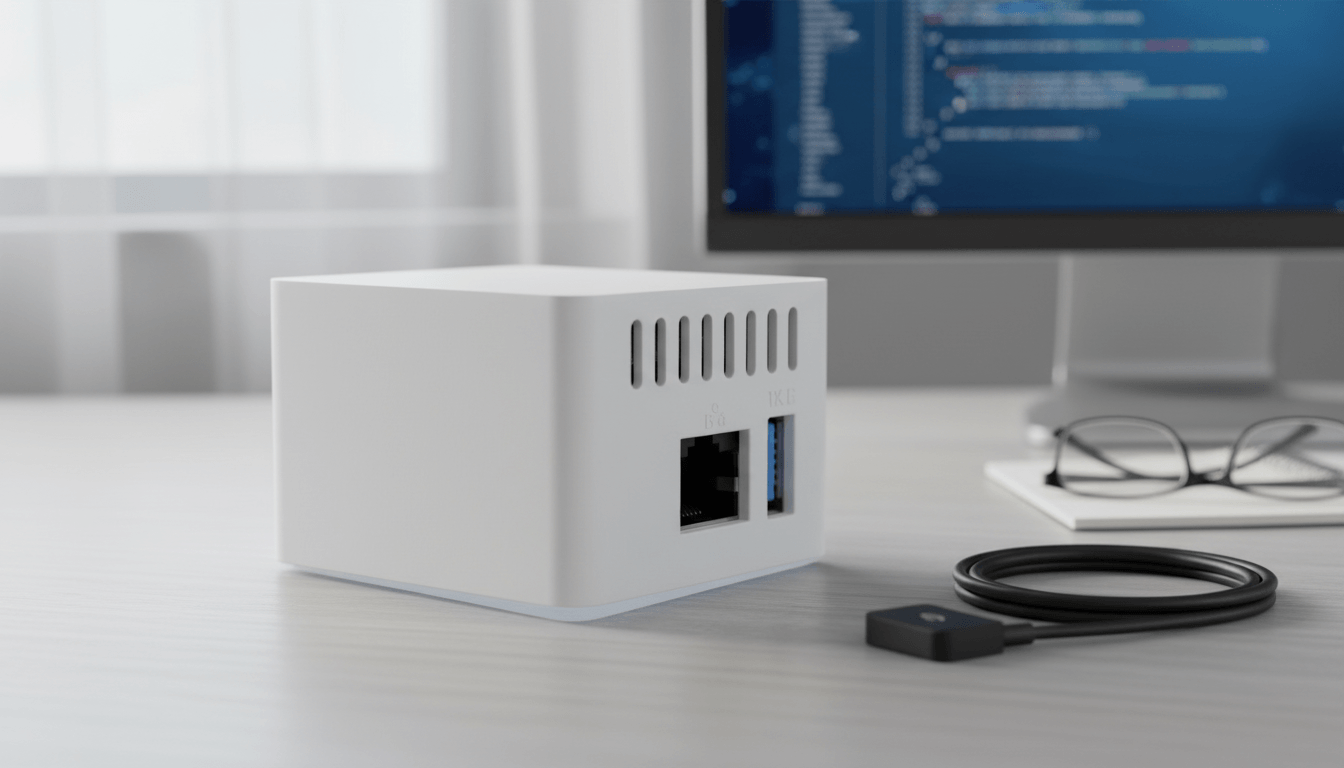
There are three working methods. Each is covered below hardware-first, as that's where most users start.
| Method | Best For | Setup Time | Works With |
|---|---|---|---|
| Aqara hub (HomeKit code) | Existing Aqara hub owners, Zigbee sensors and switches | 10 to 20 minutes | Zigbee devices paired to the hub |
| ATH Bridge | Fastest, zero server setup, mixed device ecosystems | Under 20 minutes | Non-Aqara devices via Homebridge plugins; Aqara support depends on the plugin |
| Aqara Hub M3 | Aqara-only households wanting official hardware | 15–30 minutes | Zigbee devices via Matter bridging, plus Thread devices |
| Native Matter | Newest Aqara devices, zero hub dependency | 5–10 minutes | Matter-certified devices only (P2, FP300, S100, U200, U400, W200) |
ATH Bridge is a remarkable piece. It acts as a bridge, connecting non-HomeKit compatible devices to the Apple HomeKit ecosystem. Essentially, ATH Bridge extends HomeKit compatibility to a wide array of smart devices, enabling users to seamlessly integrate them with their existing Apple smart home environment.
Pros:
- Pre-installed Homebridge, no server setup required
- Brings Aqara and non-Aqara devices into one Apple HomeKit setup
- Works with other brands through Homebridge plugins
- Runs on your local network
Cons:
- Aqara support depends on the Homebridge plugin used
- Plugin updates need occasional access to the Homebridge UI
- Connects to your router by Ethernet cable for setup
Aqara Hub M100: New Compact Matter Bridge
Aqara launched the Hub M100 as an entry-level Matter bridge. It connects Zigbee accessories to Apple HomeKit without requiring an expensive full-featured hub.
The Role of ATH Bridge:
- Intermediary: ATH Bridge serves as a pivotal intermediary, facilitating communication between devices that lack native HomeKit support and the HomeKit platform.
- Unified Control: It creates a virtual representation of non-HomeKit-enabled devices within the HomeKit framework, providing a unified control experience. Users can easily manage various smart devices, including Aqara smart devices, using the Apple Home app.
Aqara Hub M3 Best Official Hub
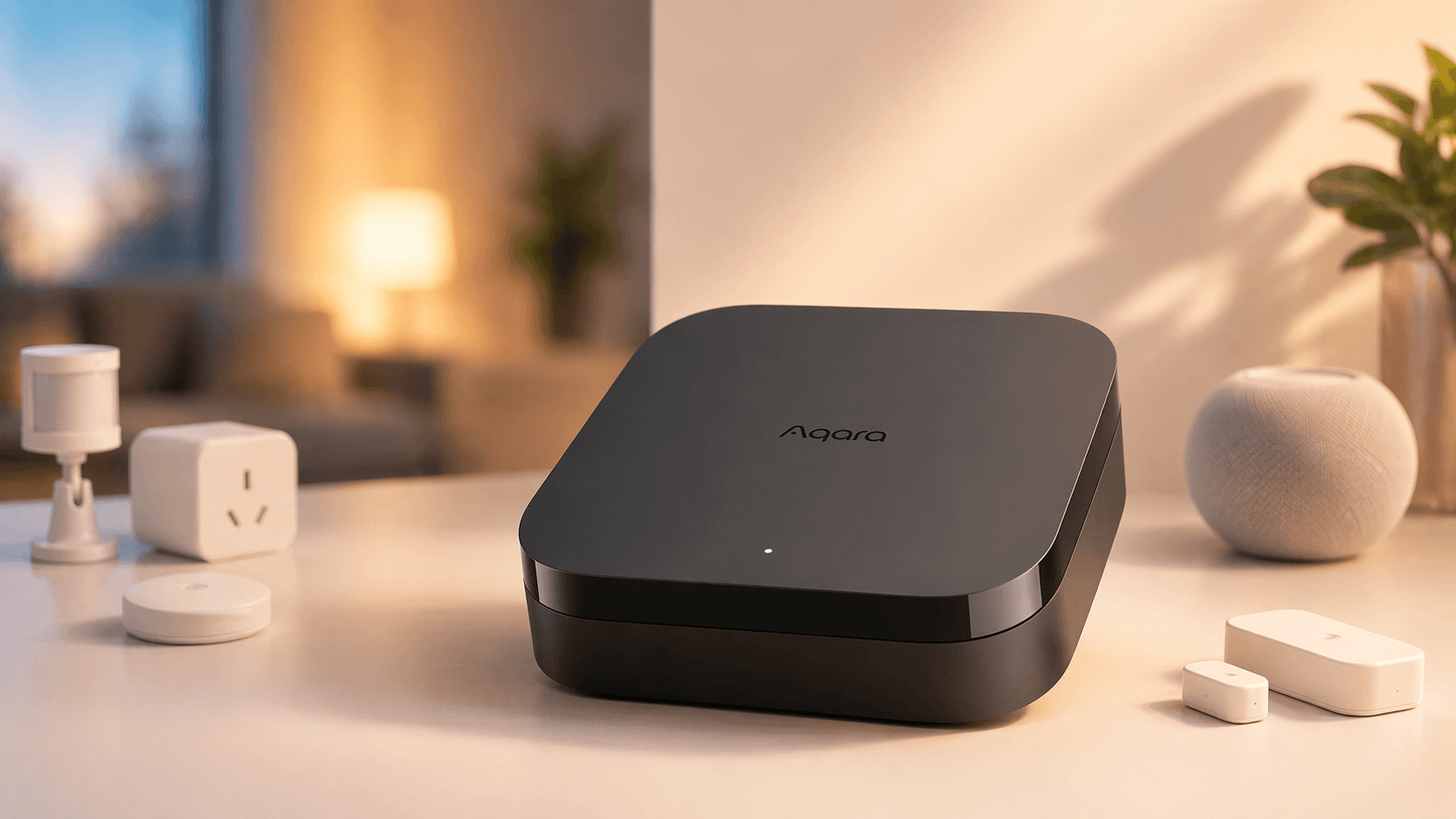
The Aqara Hub M3 is the most capable official hub Aqara currently produces. It supports Matter, Zigbee, Thread, and Bluetooth simultaneously, acting as a native Matter bridge that exposes Zigbee accessories directly to HomeKit.
Pros:
- Supports Matter, Zigbee, Thread, and Bluetooth in one device
- Joins Apple HomeKit through native HomeKit or Matter, your choice
- Works as a Thread border router for Matter-over-Thread devices
- Handles up to 127 Zigbee and 127 Thread devices
- Power over Ethernet (PoE) for a stable wired connection
- Built-in IR control for air conditioners in Matter mode
Cons:
- Higher price than the M2 or M200
- Needs setup in the Aqara Home app before HomeKit pairing
- Matter mode drops Adaptive Lighting and the Aqara security system in Apple HomeKit
- Native HomeKit mode does not include air conditioner control
Best For: Users building a large, Aqara-centric smart home who want official, future-proof hardware.
Verdict: The M3 is the right investment if you are all-in on the Aqara ecosystem. The PoE support alone makes it worth the price difference over the M2 for whole-home installations.
Aqara Hub M2 Best Value
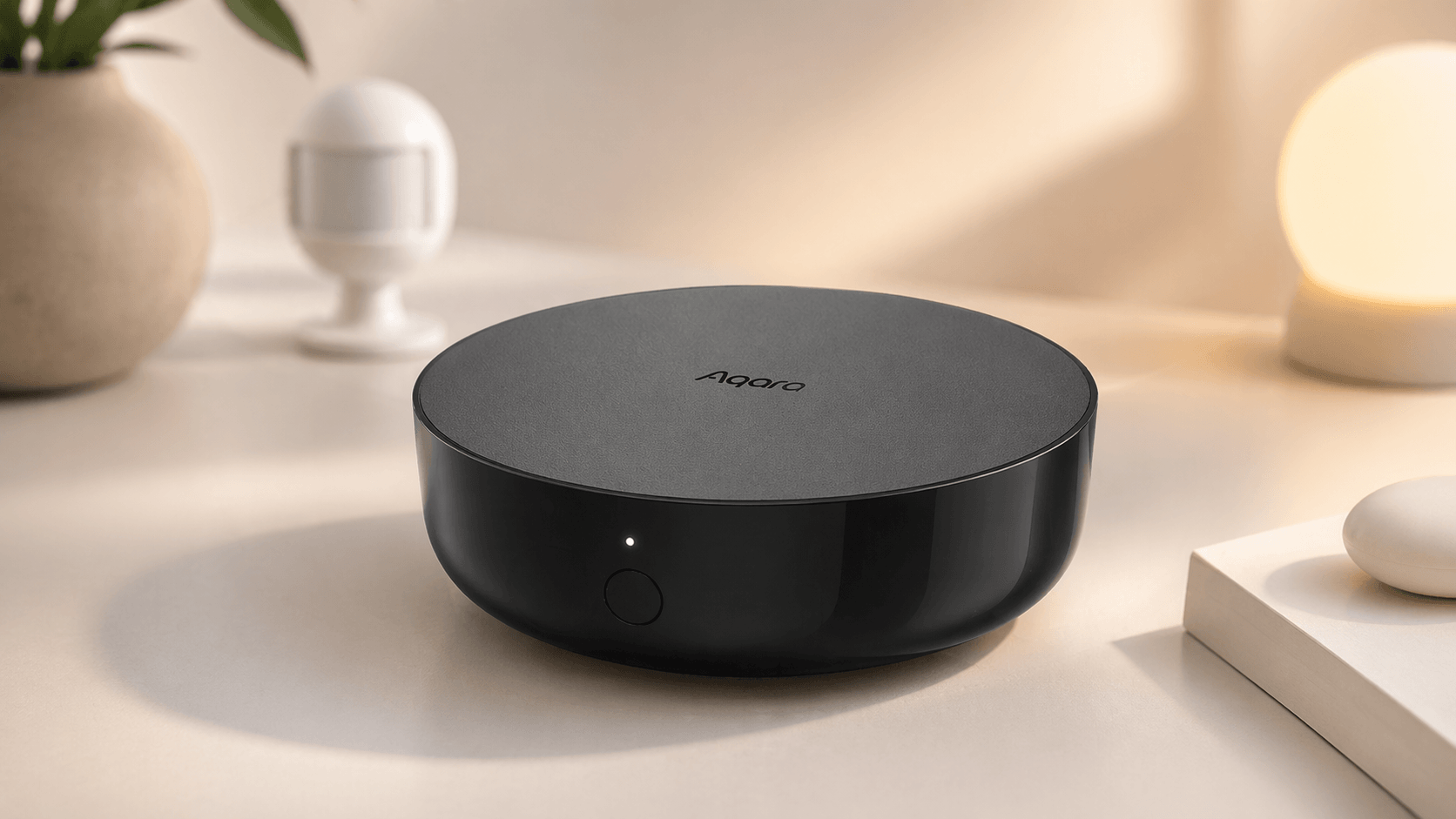
The M2 remains a capable option. Matter bridging is available through a firmware update, allowing existing M2 users to expose compatible connected Zigbee devices to Apple Home without buying a new hub.
Pros:
- Lower cost than the M3
- Supports both native HomeKit and Matter bridging
- Handles up to 128 Aqara Zigbee devices
- Ethernet port or 2.4 GHz Wi-Fi
- Large user base with plenty of community guides
Cons:
- No Thread border router
- No PoE
- Wi-Fi is 2.4 GHz only
- Matter bridging needs updated hub firmware
Best For: Users who already own an M2, or buyers where budget is the primary constraint.
Verdict: Don't replace a working M2. If you're buying new hardware today, the M3's additional capabilities justify the price difference for most setups.
Which Aqara Smart Switches Work with Apple HomeKit?
Aqara's switch lineup spans battery-powered scene controllers to wired touchscreen panels, and HomeKit compatibility varies by model and connection method. As of this writing, none of Aqara's switches carries Apple's official "Works with Apple Home" badge directly on the Apple Home accessories list, so most Zigbee switches need a hub or bridge, while the newest Matter-certified model can connect without one, provided the accessory has completed Apple's Matter certification process.
Supported Aqara Switch Models
- Aqara Wireless Mini Switch — A battery-powered Zigbee scene controller that can also function as a doorbell trigger or emergency button. Requires an Aqara Hub for Zigbee pairing.
- Aqara Smart Wall Switch (H1/D1 series) — Wired in-wall switches for controlling existing light fixtures, available in neutral and no-neutral versions depending on your home's wiring. Connects via Zigbee and requires an Aqara Hub.
- Aqara Touchscreen Switch S100 — A two-channel wall switch with a color touchscreen and native Matter support over Wi-Fi. Includes a built-in Thread Border Router, though at present that Border Router role is confirmed for Aqara Home and Samsung SmartThings; Apple Home support for the Border Router function specifically is not yet officially confirmed by Aqara. The switch itself still pairs directly with Apple Home as a Matter accessory
HomeKit Compatibility Notes
| Switch | Connection | Hub Required for HomeKit? | Native Matter? |
|---|---|---|---|
| Wireless Mini Switch | Zigbee | Yes (Aqara Hub) | No |
| Smart Wall Switch H1/D1 | Zigbee | Yes (Aqara Hub) | No |
| Touchscreen Switch S100 | Matter over Wi-Fi | No | Yes |
Setting Up Aqara Switches via ATH Bridge
For Zigbee switches (Wireless Mini Switch, Smart Wall Switch H1/D1), the ATH Bridge path mirrors the general Aqara setup:
- Pair the switch to your Aqara Hub first, inside the Aqara Home app.
- Confirm the switch appears as a recognized device inside the ATH Bridge interface, under the installed Aqara plugin.
- Add or refresh the ATH Bridge accessory in the Apple Home app; the switch will appear alongside your other bridged Aqara devices.
The Touchscreen Switch S100 skips this path entirely: since it's Matter-native, pair it directly in Apple Home via "+" then "Add Accessory," scanning the Matter code on the switch or its packaging. No ATH Bridge or Aqara Hub step is required for HomeKit purposes, though you'll still want the Aqara Home app for firmware updates and advanced scene configuration.
Which Aqara Hubs Work with ATH Bridge vs. Native HomeKit?
Not every Aqara hub reaches HomeKit the same way. Some expose their connected devices through the ATH Bridge's HomeBridge plugin, some support native Matter bridging, and some do both.
| Hub | Works via ATH Bridge | Native HomeKit (Matter) | Notes |
|---|---|---|---|
| Aqara Hub M3 | Full support | Full support | Acts as a Thread Border Router; best for large, Aqara-heavy setups |
| Aqara Hub M2 | Full support | Full support | Supports Matter bridging. Keep the hub and Aqara Home app updated for the latest features. |
| Aqara Hub M1S / M1S Gen 2 | Full support | Matter bridging supported | Advanced Matter Bridging is available with supported firmware and the latest Aqara Home app. |
| Aqara Hub E1 | Full support | Matter bridging supported | Advanced Matter Bridging is available with supported firmware and the latest Aqara Home app. |
| Aqara Hub Mini | Full support | Not specified | Verify current Aqara firmware and compatibility information before relying on Matter bridging. |
| Aqara Camera Hub G350 | Full support | Full support (Matter 1.5 certified) | Functions as both a hub and a HomeKit Secure Video camera |
What "native HomeKit" means here: a hub with Matter bridging turned on exposes its connected Zigbee devices to Apple Home directly, without routing through the ATH Bridge. What "ATH Bridge" means here: regardless of which Aqara hub you own, or even if you own no Aqara hub at all, the ATH Bridge's Homebridge plugin can bring Aqara devices into HomeKit on its own, using your Aqara account credentials rather than the hub's Matter feature. If you're running a mixed hub environment, for instance an older Aqara hub alongside a different brand's Zigbee gateway, the ATH Bridge is generally the more predictable path, since it doesn't depend on each hub manufacturer shipping and maintaining Matter bridging firmware. For a look at a similar setup on non-Aqara hardware, see our guide on adding a Tuya Zigbee hub to Apple HomeKit, or, if you're comparing hub platforms more broadly, our full Homey Pro review covers a multi-protocol alternative that also supports Aqara devices.
Do You Need a Hub for Aqara and HomeKit
It depends on the Aqara device you use. Most older Aqara devices use Zigbee, so they need a compatible hub or bridge before they can appear in Apple Home.
Most Aqara sensors, switches, and plugs use Zigbee. These devices normally connect through an Aqara hub before they are exposed to Apple Home.
Newer Matter-compatible Aqara devices may connect to Apple Home without a traditional Aqara Zigbee hub. Matter-over-Thread devices still need a compatible Thread Border Router, such as a HomePod mini or supported Apple TV 4K.
ATH Bridge provides another HomeKit integration path for supported Aqara devices through Homebridge. The exact setup depends on the Aqara device and connection method you use.
How Do You Set Up Aqara Devices with ATH Bridge Step by Step?
Quick steps: Set up your Aqara hub or ATH Bridge first. Then open the Apple Home app and tap + → Add Accessory. Scan the HomeKit or Matter setup code for your device, or select the accessory when prompted. Follow the on-screen instructions and assign the device to a room.
- Before you begin the integration process, ensure you have the necessary components ready.
- ATH Bridge: Make sure you have an ATH Bridge device. This device serves as the essential link between your Aqara smart devices and Apple HomeKit.
- Set Up ATH Bridge: Follow the manufacturer's instructions for setting up your ATH Bridge. Typically, this involves connecting the bridge to your Wi-Fi network and accessing its configuration settings.
- Access Plugins Section: Log in to your ATH Bridge's user interface and navigate to the plugins section.
- Search for the Aqara Plugin: Search for the Aqara plugin within the available plugins.
- Install the Aqara Plugin: Select and install the Aqara plugin from the list of available options.
- Enter Aqara Credentials: Configure the Aqara plugin by entering your Aqara account credentials. This step allows the plugin to access your Aqara smart devices.
- Access Devices: Within the ATH Bridge interface, navigate to the devices section. Here, your Aqara smart devices, including any Zigbee switches, should appear as recognized devices.
- Open the Apple Home App: Launch the Apple Home app on your iOS device.
- Add the ATH Bridge: Add the ATH Bridge (HomeBridge) as an accessory within the Apple Home app. This is a crucial step for integrating your Aqara smart devices into HomeKit.
- Device Recognition: Once the ATH Bridge is added, all compatible devices linked to the bridge, including your Aqara smart devices and switches, should automatically appear in the Apple Home app.
- Manage Aqara Smart Devices: Use the Apple Home app to customize settings for your Aqara smart devices, including adjusting configurations and automations.
- Create Automations: Leverage the automation capabilities of HomeKit to create routines involving your Aqara smart devices. For instance, set them to turn on when you arrive home or adjust settings based on specific triggers.
- Enable Siri Voice Control: If desired, enable voice control for your Aqara smart devices using Siri. ATH Bridge supports Siri integration, allowing you to control your devices through voice commands.
- Configure Siri Commands: Follow the instructions provided in the ATH Bridge documentation to configure Siri commands for your Aqara smart devices.
Why Is Aqara One of the Best Smart Home Brands for Apple HomeKit?
Aqara offers a wide range of devices that integrate with Apple HomeKit. One of the largest compatible product selections of any smart home brand currently available. Most of these devices, including its switches, connect to HomeKit via an Aqara Hub using the Zigbee protocol, which means local automations continue to run even when your internet connection is unstable. That reliability is a key reason Aqara has become a go-to brand for serious HomeKit setups.
What Are the Best Aqara Devices for HomeKit in 2026?
- Smart Hub M3 — The flagship hub. Acts as a Matter controller and Thread Border Router, supporting Zigbee, Wi-Fi, and Ethernet in a single device.
- Smart Lock U400 — Features Ultra-Wideband (UWB) for precise spatial detection and Apple Home Key support via NFC. Unlock your door with a tap of your iPhone or Apple Watch.
- Camera Hub G350 — A 4K dual-lens camera with Matter 1.5 certification and HomeKit Secure Video support (recorded at up to 1080p in Apple HomeKit)
- Touchscreen Switch S100 — Aqara'sfirst Matter-native wall switch, pairing directly with Apple Home without a hub.
- Presence Sensor FP2 / FP300 — Uses mmWave radar technology to detect multiple people in a room and track their positions with high accuracy. Significantly more capable than standard motion sensors. The FP2 connects over Wi-Fi; the FP300 uses Thread.
- Thermostat Hub W200 — Integrates with Apple's Adaptive Temperature and Clean Energy Guidance in iOS 26 to intelligently optimize your home's climate control.
Which Aqara Device Categories Work with HomeKit?
| Aqara Hub Model | How It Joins Apple HomeKit | Thread Border Router |
|---|---|---|
| Hub M3 | Native HomeKit or Matter (pick one) | Yes |
| Hub M200 | Matter | Yes |
| Hub M100 | Matter | No |
| Hub M2 | Native HomeKit or Matter | No |
| Hub E1 | Native HomeKit | No |
| Hub M1S | Native HomeKit | No |
| Camera Hub G350 | Camera joins via HomeKit; bridge via Matter | No |
| Doorbell Camera Hub G410 | Camera joins via HomeKit; bridge via Matter | No |
Native HomeKit support means the hub pairs directly using its printed HomeKit code, bringing its connected Zigbee child devices into the Apple Home app without extra bridge hardware.
What Are the Benefits of Aqara-Apple HomeKit Integration?
The integration of Aqara smart devices with Apple HomeKit through ATH Bridge offers several advantages:
- Unified Control: You gain the ability to control your Aqara smart devices alongside other HomeKit-compatible devices through a single interface, the Apple Home app.
- Automation: Harness HomeKit's automation capabilities to create sophisticated routines involving your Aqara smart devices, enhancing convenience and ambiance.
- Siri Voice Control: Enjoy the convenience of voice commands to control and adjust your Aqara smart devices using Siri.
- Remote Management: Manage your Aqara smart devices remotely, whether you're at home or away, adding a layer of security and convenience.
Apart from this, if you’re interested in the iRobot devices, explore How to Add iRobot Roomba Robot Vacuum to Apple HomeKit
How to Fix Aqara Devices Not Showing Up or Responding in Apple HomeKit
No accessories found when scanning: Make sure your iPhone is connected to the same 2.4 GHz Wi-Fi network as the hub during setup. Keep the hub close to your Wi-Fi router while pairing, and check that Local Network access is enabled for the Aqara Home app in your iPhone Settings.
Duplicate accessories: The hub was probably added through both native HomeKit and Matter. Remove the hub from the Apple Home app, reset its pairing mode, and add it back using only one method.
Devices appear in the Aqara app but not in Apple HomeKit: If you paired the hub via Matter, you must manually select which child devices to expose. Open the hub settings in the Aqara Home app, navigate to Matter settings, and enable device sharing for each accessory.
Thread accessories show "No Response": Check that your HomePod or Apple TV Thread border router is online and running the latest tvOS/audioOS version. If the device still drops offline, bring it closer to a mains-powered Thread repeater or restart the border router.
Old hub still listed after migrating to a new hub: Migration does not always clean up older entries automatically. Manually delete the inactive hub from both the Aqara Home app and the Apple Home app to avoid routing conflicts.
Devices offline after a power cut: Check that the Aqara hub is powered and its status LED is solid blue or white. Restart the hub first, wait two minutes for the Zigbee mesh network to heal, and then check Apple HomeKit.
Which Aqara Devices Work With Matter and HomeKit Natively?
Several Aqara devices can work with Apple Home through Matter, an Aqara hub, or ATH Bridge. The connection method depends on the device. Some newer Matter-over-Thread devices connect through a compatible Thread Border Router, while Zigbee devices normally require a compatible hub. Check the compatibility matrix below to see which connection options are available for each device.
Compatibility Matrix
| Device | Connection | Aqara Hub Required? | Native Apple HomeKit |
|---|---|---|---|
| Door & Window Sensor P2 | Matter over Thread | No (needs Thread border router) | Yes |
| Motion Sensor P1 | Zigbee | Yes | Yes (via hub) |
| Temperature & Humidity Sensor W100 | Zigbee | Yes | Yes (via hub) |
| Presence Sensor FP2 | Wi-Fi | No | Yes |
| Presence Sensor FP300 | Matter over Thread | No (needs Thread border router) | Yes |
| Smart Plug (Zigbee) | Zigbee | Yes | Yes (via hub) |
| Wireless Mini Switch | Zigbee | Yes | Yes (via hub) |
| Smart Wall Switch H1/D1 | Zigbee | Yes | Yes (via hub) |
| Touchscreen Switch S100 | Matter over Wi-Fi | No | Yes |
| Smart Lock U200 / U400 | Matter over Thread | No (needs Thread border router + home hub) | Yes (Home Key) |
| Camera Hub G350 | Wi-Fi / Ethernet | Built-in hub | Yes (HSV up to 1080p) |
| Doorbell Camera Hub G410 | Wi-Fi | Built-in hub | Yes (HSV) |
| Thermostat Hub W200 | Matter | Built-in hub | Yes (iOS 26 features) |
| LED Strip T1 / Ceiling Light T1M | Zigbee | Yes | Yes (via hub) |
Thread devices need a Thread border router: HomePod mini, HomePod (2nd generation), Apple TV 4K (Wi-Fi + Ethernet), or a compatible third-party router such as the Aqara Hub M3 or M200. iPhone 15 Pro and later can control Thread accessories without one.
Which Solution Is Right for You?
Choose the ATH Bridge if:
- You want the fastest setup with zero technical configuration
- You have a mix of Aqara and non-Aqara devices
- You don't want to manage server software or firmware dependencies
- You're new to HomeKit integrations
- You own older Zigbee switches and want them working without waiting on hub firmware updates
Choose the Aqara Hub M3 if:
- You are building a large, Aqara-only smart home
- You want official manufacturer support and guaranteed updates
- You need Thread Border Router functionality
- Long-term ecosystem reliability is the priority
Choose the Aqara Hub M2 if:
- You already own one and it's working reliably
- Budget is your primary constraint
- Thread support is not required
Choose Matter-native devices if:
- You already have a Thread Border Router (HomePod, Apple TV 4K, or M3)
- You are buying new Aqara hardware, such as the Touchscreen Switch S100, and want zero bridge dependency
- Simplicity and Apple ecosystem alignment are your top priorities
Final Verdict: Which Aqara HomeKit Method Should You Choose?
If you already own an Aqara hub, adding it to Apple HomeKit with its HomeKit or Matter code is the quickest path. If your home mixes Aqara with brands that have no Apple HomeKit support, ATH Bridge brings them together in one place
If you are committed to the Aqara ecosystem long-term and need Thread Border Router functionality, the Aqara Hub M3 is the premium choice. The M2 remains solid if you already own one. And if you are buying new Aqara hardware, prioritize Matter-compatible models like the P2 sensor or the Touchscreen Switch S100 to reduce bridge dependency over time.
FAQs about Aqara Apple HomeKit
How do I add Aqara to Apple HomeKit?
Should I add my Aqara hub to Apple HomeKit with its HomeKit code or with Matter?
Why are my Aqara devices not showing up in Apple HomeKit?
Does Aqara Work with HomeKit?
What Aqara Switches Are HomeKit Compatible?
Do All Aqara Devices Work with Apple HomeKit?
Do You Need an Aqara Hub to Use HomeKit?
What Is the Difference Between ATH Bridge and Homebridge?

Written by
Smart Home Researcher | Zigbee & Smart Home Technology Expert | Sharing Real-World Experiences & Research | Blogger & Freelance Writer | Turning Complex Smart Home Tech Into Simple, Practical Guides | Helping You Build Smarter, Connected Homes
Related articles
How to Add Eufy Devices to Apple HomeKit [Complete 2026 Guide]
Eufy makes excellent security cameras, doorbells, and smart locks. But bringing them into Apple HomeKit is not always straightforward. Some Eufy devices support HomeKit natively. Many do not. The setup path changes depending on your exact model and using the wrong method wastes time and causes frustration. This guide walks you through every working Eufy-to-HomeKit setup path in 2026. 💡Quick Answer Eufy supports Apple HomeKit through four paths: 01. Using Bridge Solutions (ATHBridge) 02. Home
How to Add Z-Wave Devices to Apple HomeKit
If you use Z-Wave devices and want to control them through Apple Home, you may notice one important limitation: most Z-Wave devices do not support Apple HomeKit directly. This is because Z-Wave and Apple HomeKit use different communication systems. To connect them, you need a compatible Z-Wave HomeKit bridge or hub that makes supported devices available in the Apple Home app. The ATH Bridge is our recommended solution. It is a ready-to-use HomeBridge server that connects compatible Z-Wave devic
How to Add Yale Devices to Apple HomeKit
Yale has become one of the most trusted smart lock manufacturers, offering everything from traditional keypad deadbolts to advanced Matter-enabled smart locks with Apple Home Key support. However, not every Yale lock works with Apple HomeKit out of the box. Fortunately, whether you own a newer Yale Assure Lock 2, an older Yale Assure SL, or a Yale Access lock, there are several ways to integrate your lock with Apple Home. Depending on your model, you can use native HomeKit support, Matter, Home